Uptime monitoring and a public status page
Watch websites and ports, get alerts, plan maintenance, and publish a status page for your visitors, for a customer and for the whole server.
This tutorial watches a website so you hear about an outage before your visitors do, then publishes a status page. The first half is for a hosting customer in the Control Panel; the second half is for an administrator running the server's own status page. Allow 20 minutes.
You need: a website on HF Panel, for example example.com.
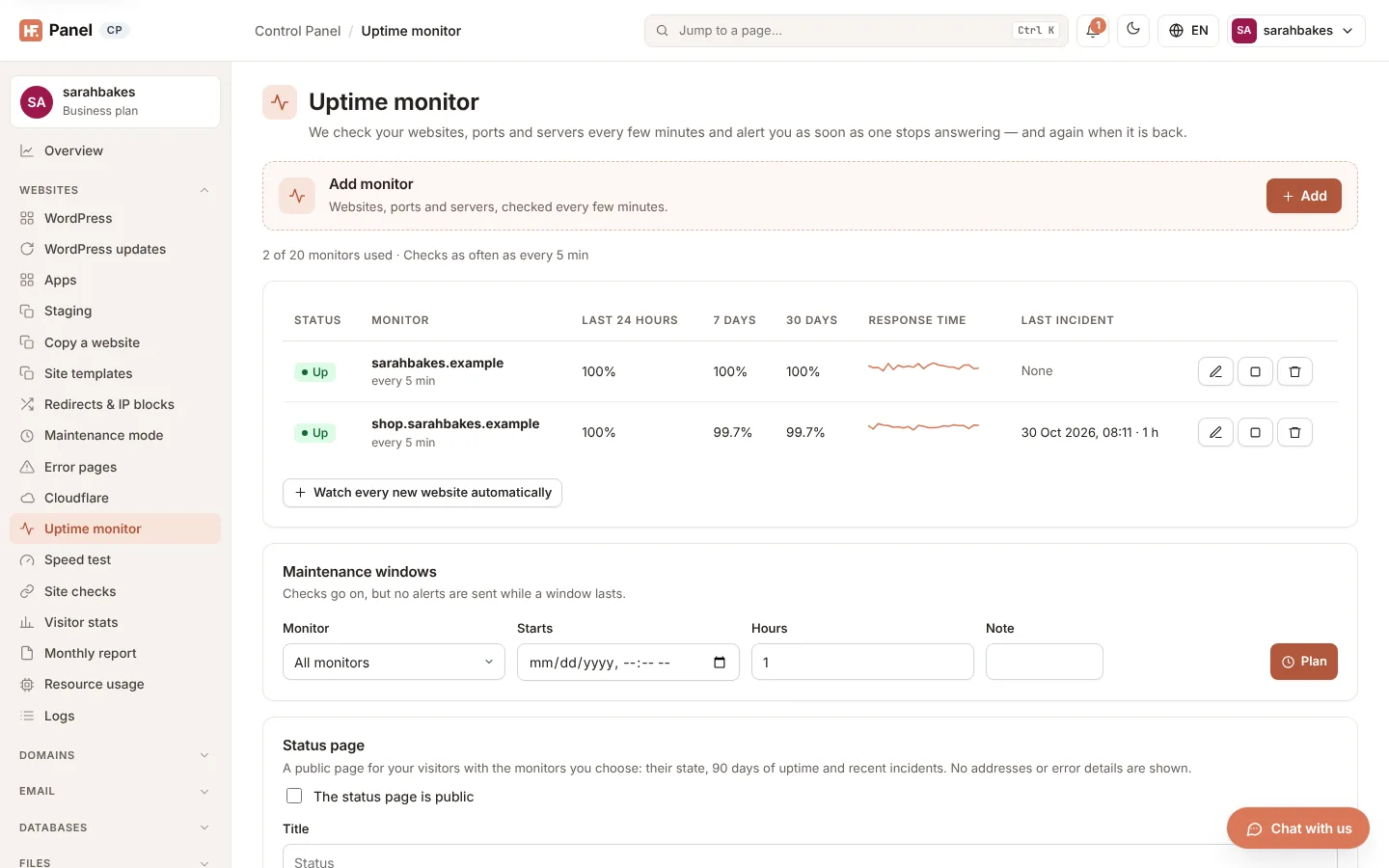
1. Add a monitor
- Open Control Panel › Websites › Uptime monitor and click Add on the Add monitor card.
- Leave What to check at Website (HTTP/HTTPS) and enter
https://example.com/under Address to watch. - Give it a clear Name, for example
Online shop: that is what visitors will read on the status page. - Choose Check every 5 minutes (your plan sets the shortest interval).
- Click Save.
The first check runs within a few seconds. A monitor counts as Down only after two failed checks 30 seconds apart, so a single lost connection doesn't wake you.
Tip: click Watch every new website automatically under the list, and every website you add later gets a monitor too.
2. Catch pages that load but are broken
On the monitor, fill in Word on the page with a word that must be there, such as Add to basket: a database error
page that still answers 200 then counts as down. Tick Down when the word IS on the page to turn it around and
watch for text such as Database error.
Set Warn before the SSL certificate ends (days) to 14 to get a warning before a certificate lapses.
3. Watch a port or a server
Click Add on the Add monitor card again and choose TCP port to watch, for example, port 3306 or 22 of a host, or Host (ping) to check that a server answers. Monitors reach public addresses only.
4. Choose who is alerted
Alerts go to your account's email address, to the bell in your Control Panel and to the channels you set under Notifications. Under Also alert, add up to five more email addresses, and set Remind while down (hours) to be reminded while the problem lasts. You get a "back up" message with the length of the outage when it recovers.
5. Plan maintenance without false alarms
Before you work on the website, open Maintenance windows, choose the monitor (or All monitors), set Starts and Hours, add a Note and click Plan. Checks go on, but no alerts are sent during the window.
6. Publish your status page
- On Uptime monitor, find Status page and tick The status page is public.
- Enter a Title, for example
Sarah's Bakery status. - Under Monitors on the page, tick the monitors to show, then click Save.
- Click Copy link and put it in your website's footer.
Visitors see an overall banner, 90 days of daily bars per monitor and the incidents of the last 30 days: never your addresses or error details.
7. The server's own status page (administrators)
- Open Server Admin › Server › Status page, tick The status page is public and click Save.
- To tell customers about a problem, use Report an incident: type a Title, tick What is affected, choose How bad, describe it, tick Also email all customers if needed, and click Post incident.
- For planned work, use Plan maintenance with Starts (UTC) and Ends (UTC).
- Post progress with Post update; set an incident to Resolved when it is over.
Visitors can sign up for email updates with Get updates (they confirm by email first) or follow the Atom and RSS feeds. While something is open, everyone in the panel sees a banner linking to the page.
8. See all customers' monitors (administrators and resellers)
Server Admin › Server › Uptime overview (Reseller Panel › Accounts › Uptime overview) lists every customer's monitor with the ones that are down first. Click Down now to show only those.
Troubleshooting
| Problem | What to check |
|---|---|
| Monitor can't be added | your plan's number of monitors is used up (the line under the heading shows it) |
| Address is refused | monitors reach public addresses only, not 10.x or 192.168.x |
| Down, but the site works | the Status codes that count as up range, Follow redirects, or the Word on the page |
| No alert emails | the notification channels under Account › Notifications, and your spam folder |
| Status page says "Not found" | The status page is public is off, or you made a New address and the old link stopped |