Set up billing
Connect Stripe and PayPal, charge VAT by country, sell in more currencies, make discount codes and chase unpaid invoices, step by step.
This tutorial sets up everything around getting paid: the ways to pay, tax, currencies, discount codes, reminders for unpaid invoices and a commission for people who bring customers. It builds on Sell hosting with packages and online payments, which makes the packages and opens the order page. Allow about an hour, most of it in your Stripe or PayPal account.
You need: an administrator login, at least one paid package, and a Stripe account, a PayPal business account, or both.
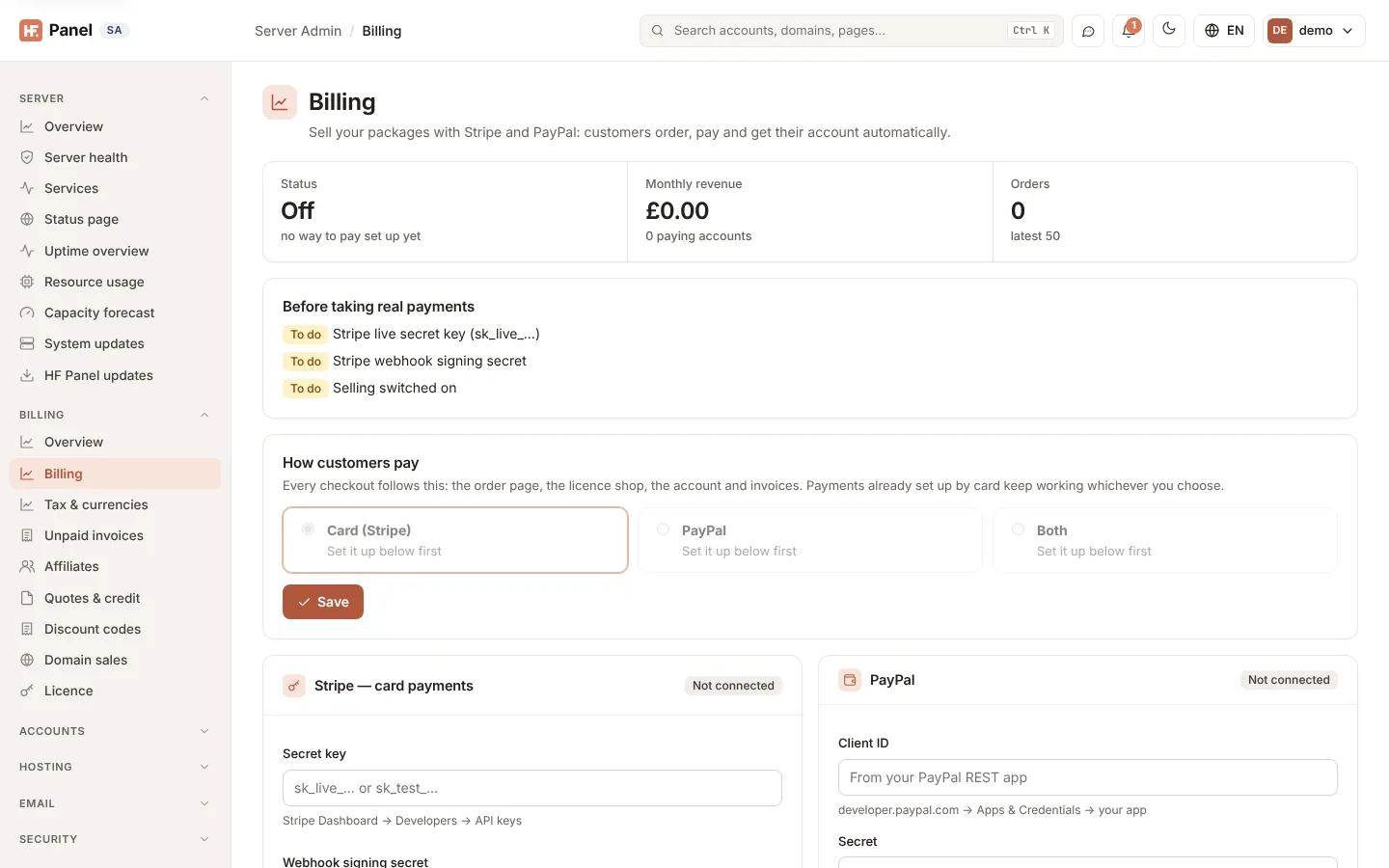
1. Connect Stripe and PayPal
- Open Server Admin › Billing › Billing. The Set up (once) card shows your server's own webhook address.
- In the Stripe Dashboard, add that address as a webhook endpoint and choose the events the card lists.
- Under Stripe — card payments, paste the Secret key and the Webhook signing secret (
whsec_…), click Save, then Check Stripe & sync packages. - For PayPal, paste the Client ID and Secret under PayPal, choose Sandbox — test payments first, tick Offer PayPal on the order page, the licence shop and invoices, click Save and then Connect PayPal.
- Under Selling, choose the Currency, tick Open the order page and take payments and click Save.
Important: a Stripe secret key without its webhook signing secret takes payments that never become accounts.
2. Fill in your invoice details
Under Invoice details, enter your Company name, Address, Number prefix and How to pay (bank details for invoices paid by transfer). Tick Email each invoice to the customer as a PDF and click Save invoice details.
3. Charge VAT by country
- Open Server Admin › Billing › Tax & currencies.
- Under VAT rules, tick Use the VAT rules, choose Your business is in and type Your VAT number (the VAT rate (%) there is the single rate used while the rules are off).
- Tick Registered for the EU One Stop Shop if you are, so EU consumers pay their own country's rate, and tick Check EU VAT numbers with VIES so businesses with a valid number pay no VAT (reverse charge).
- Decide whether your prices include VAT, and click Save VAT rules.
- Check the table under VAT rates; change a country's rate when it changes and click Save rates.
- For countries outside the EU and the UK where you must charge sales tax or GST, enter their rates under Tax outside the EU and the UK.
At the end of a quarter, set From and To under Tax report, click Show, and download the CSV.
4. Sell in more currencies
- Under Currencies, tick each extra currency, then type each package's monthly price in it. A box left empty means "not sold" in that currency.
- To fill the gaps automatically, use Exchange rates: tick Sell packages without their own price in a currency at the converted price, and either type the rates or enter an https address under Fetch the rates from and tick Fetch the rates every night.
- Click Save currencies.
A price you type for a package always wins over a converted one, and customers who already pay keep their price.
5. Make discount codes
- Open Server Admin › Billing › Discount codes.
- Type a Code such as
SPRING20, set the Discount (% off, an amount, or months free) and For (the first payment, some months or every payment). - Set the limits you want: Uses in all, Uses per customer, Starts and Ends, packages, billing periods and New customers only.
- Click Make code. Share the order link the code list gives you.
After a campaign, read the Usage report or click Download CSV.
6. Chase unpaid invoices
- Open Server Admin › Billing › Unpaid invoices.
- Tick Send reminders and suspend unpaid accounts.
- Set Reminder days after the due date (for example
1, 3, 5, 7), Reminder before the due date and Suspend after (days). - Tick Try failed card payments again on the reminder days if you use Stripe.
- Click Save.
Suspension pauses websites and email and never deletes anything. The account comes back by itself when the invoice is paid. Leave Close the account after (days) at 0 unless you really want unpaid accounts deleted.
7. Let others sell for you (optional)
- Referral programme: on Billing, tick Switch on under Referral programme and set the Credit per referral. Customers share a link under Refer a friend.
- Affiliates: open Server Admin › Billing › Affiliates, tick Run the affiliate programme, set the Commission rules, the Hold commissions for (days) and the Minimum payout, and approve applications. Customers apply under Control Panel › Billing › Affiliate.
8. Make a test order
Order the cheapest package yourself with a Stripe test key or PayPal Sandbox, with and without a discount code. Check that the order shows Account made, the invoice shows the right VAT and discount line, and the PDF arrives by email. Then switch Stripe and PayPal to their live keys.