Fleet
See every server of your cluster on one list — health, version, accounts, licence — and run updates, repairs, restarts and copies on many at once.
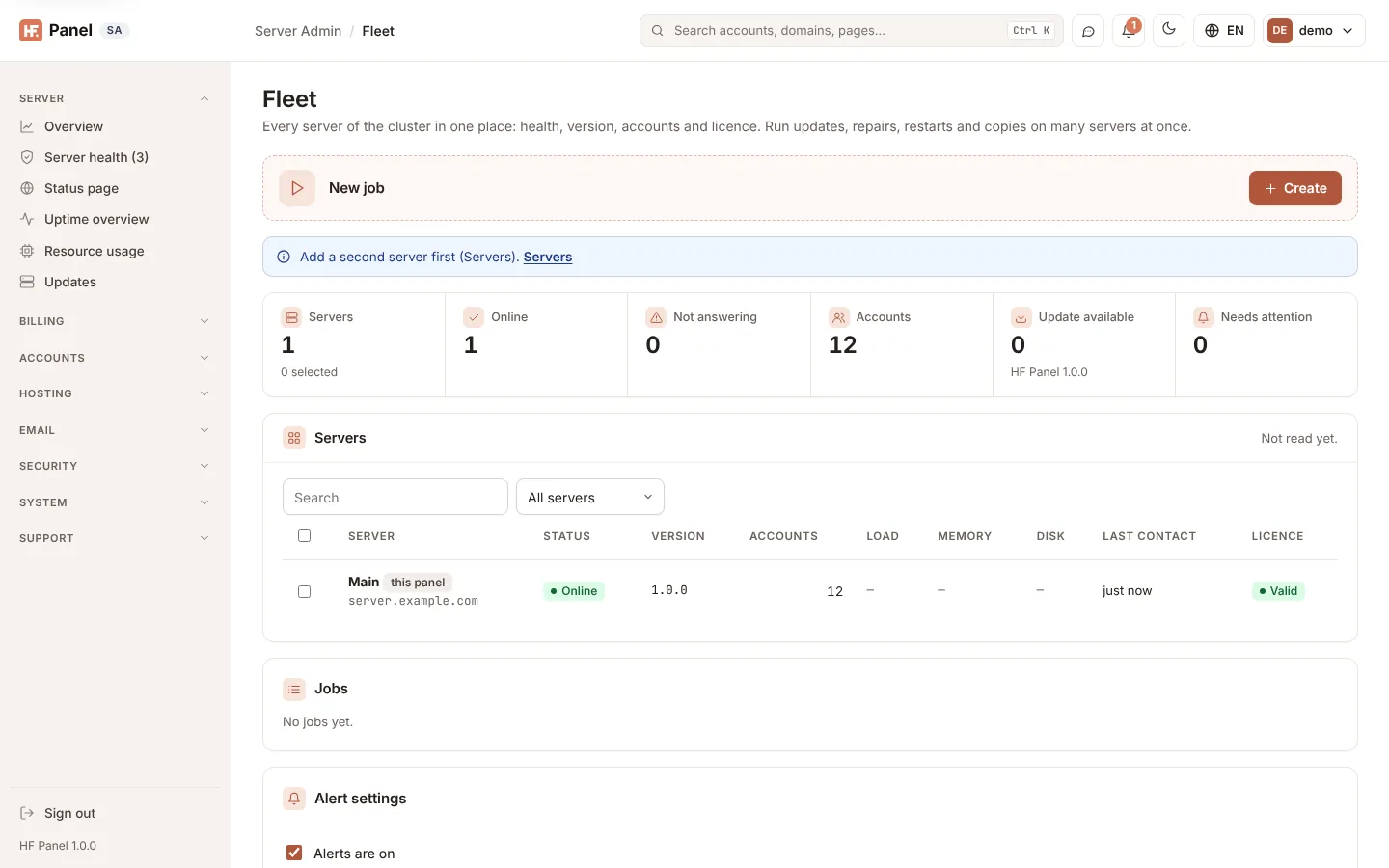
Fleet is for a hosting company that runs many HF Panel servers. Every server joined under Servers is on one list with its health, HF Panel version, accounts, last contact and licence. You can run one job on many servers at once — update HF Panel, run the auto-fixer, restart a service, or copy a package or feature list — and see each server's result. Servers that stop answering or run out of disk space are reported to you in the notifications centre.
Where: Server Admin › Accounts › Fleet
Note: this menu entry appears only when at least one other server is joined under Servers. It is part of the Servers licence feature.
The totals
The figures at the top count Servers, Online, Not answering, Accounts, servers with an Update available (with the newest HF Panel version this panel knows) and servers that Needs attention.
The server list
The first row is this panel's own server, marked this panel. The list shows the last reading; every server is read again every 5 minutes, and Check now reads them all straight away.
| Column | What it shows |
|---|---|
| Server | Its name and host name. |
| Status | Online; Needs attention when it has not answered for longer than the alert limit or its disk is past it; Not answering with the reason when you point at it. |
| Version | Its HF Panel version, and Update available when a newer one is known. |
| Accounts | Hosting accounts on it. |
| Load | The load average per CPU core. |
| Memory / Disk | How much is used, in %. A disk past the alert limit is shown in red. |
| Last contact | When it last answered. |
| Licence | Valid, Locked (no valid licence: the server's panel is locked) or Official edition. A dash means the server's HF Panel is too old to say. |
| Standby lag | Shown when a server has a standby: how far behind its standby is, or Not copying (the standby's name when you point at it). See Standby & failover. |
Type in Search to find servers by name, host name or version. The Filter shows All servers, only those Online, Not answering, with an Update available, or that Needs attention.
Tick servers in the first column to choose them for a job. The tick in the column's heading chooses (or clears) every server the search and filter show.
Run a job on many servers
-
Tick the servers in the list (you can change them in the dialog too).
-
Click Create on the New job card.
-
In the dialog, choose the Action:
Action What happens on each server Update HF Panel It downloads and installs the newest HF Panel release with its own licence, as Update now under HF Panel updates does. The update runs in the background there. Run the auto-fixer The same repairs as hf-agent autofix: package sources, half-installed packages, missing configuration files, disk space, swap and name servers.Restart a service Restarts the Service you choose (web server, PHP, database, mail, DNS, FTP and so on). Copy a package Adds the Package you choose to the server, or changes the one with the same name there. Copy a feature list Adds the Feature list you choose, or changes the one with the same name there. -
Check the Servers ticked (Select all and None help), then click Run.
The job runs in the background, at most four servers at a time. Jobs lists the last 20 jobs with who started them, how many servers answered OK, how many Failed, and how many are Waiting. Click Details to see each server's answer. Cancel stops a job: servers not started yet are skipped.
Note: a copy skips this panel's own server — it is the one the package or list is copied from.
Every command goes through the same signed link the server joined with: the request is signed with the server's secret, refused after 5 minutes or when sent twice, and accepted only from this panel's IP address.
Alerts
Two alerts go to the administrators in the notifications centre, once per server until the alert's quiet period ends:
- Server not answering — a joined server has not answered for longer than the limit.
- Server disk almost full — a server's disk is fuller than the limit.
In Alert settings, set Alert when a server has not answered for, minutes (5–1440, 15 by default) and Alert when a disk is fuller than, % (50–99, 90 by default), untick Alerts are on to stop them, and click Save. Choose where alerts are sent (email, webhook and other channels) under Notifications.