Files
Sign in to Files, the file manager of HF Panel, and work it with the mouse, the keyboard and drag and drop.
Files is the file manager of HF Panel. It shows the files of your hosting account and runs every change as your account's own user, inside your home folder only.
Where: https://fm.yourdomain.com, or Control Panel › Files › File Manager
Open Files
From the Control Panel: click File Manager in the menu. Files opens in a new tab, already signed in. The link works once (opened again in a browser that is already signed in to Files, for example with Reload or Back, it simply opens Files); if you see That link has expired. Open the File Manager from your Control Panel again., open it from the Control Panel again.
Directly:
- Open the Files address.
- Enter the Username and Password of your hosting account.
- Click Sign in.
If your account uses two-factor login, type the 6-digit Code from your authenticator app (or a backup code) and click Continue. Cancel and sign out goes back.
The sign-in page lists the available languages; click one to switch. Forgotten your password? resets it right here: type your username or email, then the 6-digit code from the email, then your new password twice. You are back on the sign-in page and can sign in with it (the code works for 15 minutes; the email's link opens the Control Panel's reset instead). DB Studio works the same way.
Note: a session ends after 2 hours without use, and after 12 hours at most. Changing your account's password ends every open session.
Places
The side menu has the main places of your account:
| Place | Folder | What it holds |
|---|---|---|
| Home folder | / |
everything in your account |
| Websites | /web |
one folder per website; each website is also listed under it |
| Logs | /logs |
your websites' log files |
| Temporary files | /tmp |
your account's temporary files |
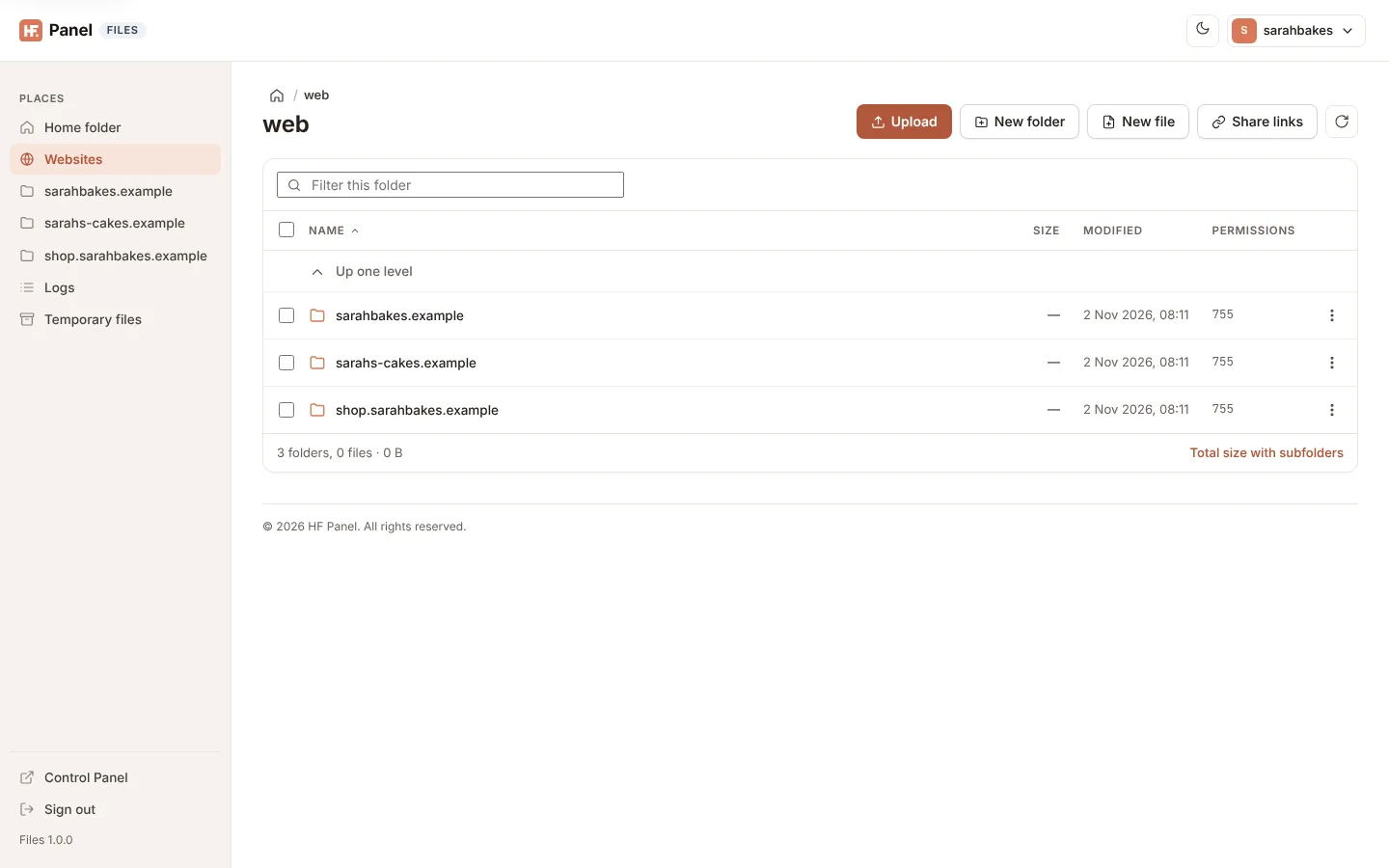
A plain visit opens Websites. The path at the top (breadcrumbs) shows where you are; click any part of it to go back up. Up one level at the top of the list does the same.
The folder view
Each entry shows its Name, Size, Modified date and Permissions. Click a column heading to sort by it; click again to reverse. Folders come first.
Files works like the file manager on your computer: click an entry to select it and double-click it to open it. On a phone or tablet, tap it to open it.
| Double-click | Opens |
|---|---|
| a folder | the folder |
| a text or code file | the editor |
| a picture | a preview, with Download |
| any other file | downloads it |
The toolbar has Upload, New folder, New file, Share links and a refresh button. Type in Filter this folder to show only the entries whose names match.
Under the list, Files shows how many folders and files there are and their size. Click Total size with subfolders to count everything in the folder.
Note: a folder with more than 5,000 entries shows the first 5,000. The rest can be reached over SFTP.
Mouse
| Mouse | What it does |
|---|---|
| Click | selects the entry |
Ctrl + click (⌘ + click on a Mac) |
adds the entry to the selection, or takes it out |
Shift + click |
selects every entry from the last one clicked |
| Double-click | opens the entry (see above) |
| Right-click on an entry | its menu with every action: Open or Edit, Preview, Download, Cut, Copy, Paste (folders), Rename, Make a copy, Move, Zip, Extract here (.zip files), Share link, Permissions, Delete |
| Right-click on several selected entries | Cut, Copy, Move, Zip and Delete for all of them |
| Right-click on an empty part of the list | New folder, New file, Upload, Paste, Select all, Refresh, Keyboard shortcuts |
| Middle button on a folder | opens the folder in a new browser tab |
| The mouse's back and forward buttons | go back and forward between the folders you opened, like the browser's own buttons |
The More button (⋯) at the end of a row opens the same menu as a right-click. On a phone or tablet, touch and
hold an entry to open its menu. The menu closes with Esc or a click anywhere else.
Keyboard
Press ? (or click the keyboard button in the toolbar) to see every shortcut. On a Mac, use ⌘ where the table says
Ctrl. Shortcuts don't work while you type in a field, such as Filter this folder.
| Key | What it does |
|---|---|
↑ ↓ |
moves to the next or previous entry and selects it |
Shift + ↑ ↓ |
selects a range |
Ctrl + ↑ ↓, then Space |
moves without selecting, then selects or unselects the entry |
Home End PgUp PgDn |
the first or last entry, or ten entries up or down |
| letters | jumps to the first entry whose name starts with what you type |
Enter |
opens the entry |
Backspace, Alt + ↑ |
goes up one level |
Alt + ← → |
back and forward (the browser's own keys) |
F2 |
renames the entry |
Delete |
deletes the selected entries, after you confirm |
Ctrl + A |
selects every entry |
Ctrl + C, Ctrl + X, Ctrl + V |
copies or cuts the selected entries and pastes them into the folder you open next |
Ctrl + Shift + N |
new folder |
Ctrl + U |
upload |
Ctrl + F |
goes to Filter this folder |
F5 |
reads the folder again |
Shift + F10 or the menu key |
the entry's menu |
Esc |
clears the selection, or closes the menu |
On a page in Arabic, Persian or Urdu the arrow keys follow the reading direction.
Drag and drop
| Drag | Onto | What happens |
|---|---|---|
| files or folders from your computer | the list | uploads them into the folder you have open |
| files or folders from your computer | a folder in the list | uploads them into that folder |
| entries of the list | a folder, Up one level or a part of the path at the top | moves them there; hold Ctrl or Alt while dropping to copy them instead |
| one file of the list | your desktop (Chrome and Edge) | saves the file there |
A dropped folder keeps everything in it, with its own folders, even the empty ones. The folder under the pointer is highlighted; a folder can't be dropped into itself. Uploads show their progress in the corner (see Managing files).
Your account menu
Your username at the top right opens Control Panel, Password & security (both in the Control Panel) and Sign out. The moon and sun button switches between the light and dark look.
When your hosting provider or a team member opens Files for you, a notice at the top says so: You are looking at the files of sarahbakes as …. Changes are recorded with your name.