Plugins & hooks
Install signed or local plugins after reviewing their permissions, send events to your systems with webhooks, and see script hooks.
On the Plugins & hooks screen you add features to the panel with plugins, send events (a new account, a removed domain, a finished backup …) to your own systems with webhooks, and check the script hooks on the server. The screen has four tabs: Plugins, Webhooks, Script hooks and Events.
Where: Server Admin › System › Plugins & hooks
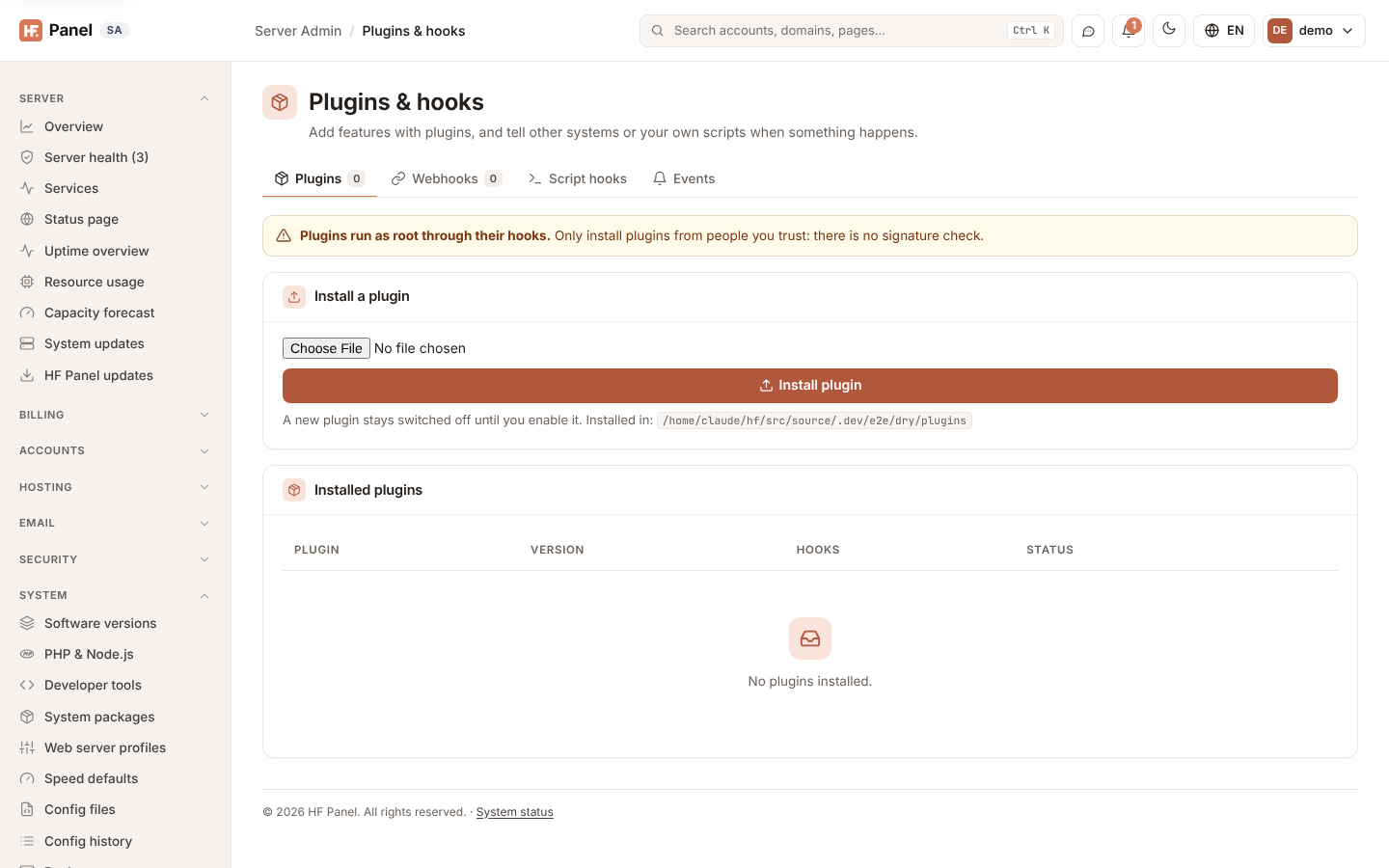
Plugins come in two kinds. A marketplace package (.hfp) is signed by its vendor and countersigned by the
marketplace; its hooks run in a sandbox with only the permissions you approve. A local trusted plugin is your own,
unsigned, and its hooks run as root.
Warning: only install your own plugins as local trusted plugins. Their hooks run as root.
Plugins
The Installed plugins card lists each plugin with its name, description, publisher (or author), version, how it is trusted, the permissions it has, the events it hooks, and its status: Enabled, Disabled or Cannot be used (the reason is shown under its name).
| Trust | What it means |
|---|---|
| Countersigned by the marketplace | a reviewed marketplace package; its hooks run in a sandbox |
| Signed by its vendor only | not yet countersigned: it installs and runs only while Developer mode is on |
| Local trusted plugin — runs as root, local only | your own unsigned plugin |
Install a plugin
- In the Install a plugin card, choose the plugin's
.hfpor.zipfile. - Click Install plugin. The file is checked first; a package that breaks a rule, or whose signatures don't match, is refused with the reason.
- The Review the plugin dialog shows the plugin, who signed it and the permissions it asks for (for an update, the ones it adds are marked New). For a local trusted plugin, tick This is my own plugin: let its hooks run as root.
- Click Install plugin in the dialog.
- Click Enable next to the plugin and confirm. Enabling approves its permissions.
A new plugin stays switched off until you enable it. Installing a plugin that is already there replaces it with the new version and keeps it enabled when it was.
Developer mode
Packages that are signed by their vendor but not yet countersigned can be installed only in Developer mode. Only the
server's root user can switch it, with hf-agent plugin developer on (and off); while it is on, a notice says so at
the top of the Plugins tab. Every install in Developer mode is written to the hooks log and the
Activity log.
Enable, disable or remove a plugin
| Button | What it does |
|---|---|
| Enable | switches the plugin on, approving its permissions: its pages appear, its hooks run and it gets its API token |
| Disable | switches it off: its pages go, its hooks stop and its API token is deleted; its files stay |
| Remove | deletes the plugin's files and switches it off |
You can do the same on the server with hf-agent plugin (see Plugins). What each permission
allows: Plugin permissions.
Webhooks
A webhook sends the events you choose to an https:// address of yours, signed with its own secret.
Add a webhook
- Click the Webhooks tab.
- Enter the Address (https://) and tick the Events (or click All events). Keep On ticked.
- Click Add webhook. The signing secret is shown once in the message at the top.
| Button | What it does |
|---|---|
| Send test | sends a test event to the webhook now and says whether it arrived |
| Edit | change the address, the events or On in the form above, then click Save webhook |
| Show secret | shows the signing secret in the webhook's row, with a copy button |
| New secret | makes a new signing secret; the old one stops working at once |
| Delete | deletes the webhook and its deliveries |
The address must be public: private and local addresses are refused. A failed delivery is tried again 3 times (after 10 seconds, 1 minute and 5 minutes).
Follow the deliveries
The Deliveries card shows the last 100 deliveries: when, the event, the address, the status (sent, retry or failed), the attempts, and the answer's status code and time, with the reason when it failed.
Script hooks
The Script hooks tab shows the programs the server's root user put in /etc/hostfog/hooks/<event>.d/, with
whether each one runs. It is read-only: script hooks are added on the server (see
Event hooks). Below, Plugins' hooks lists the hooks of the installed plugins,
and Hooks log shows the end of /var/log/hostfog-hooks.log: each run, its exit status and its output.
Events
The Events tab lists every event with an example of the JSON it is sent as. Click an event to see its example.
Every change on this screen, and every time a secret is shown, is written to the Activity log.