Speed test
Test how fast a website loads, fix what it finds with one click, and set the page cache, compression and browser caching; empty the whole page cache or one page.
The speed test measures how fast a website loads and gives it a score from 0 to 100, with tips to make it faster. Tips the panel can fix itself have a Fix it button; the others link to the screen where you fix them. Under the score, Speed settings holds the website's page cache, compression and browser cache.
Where: Control Panel › Websites › Speed test
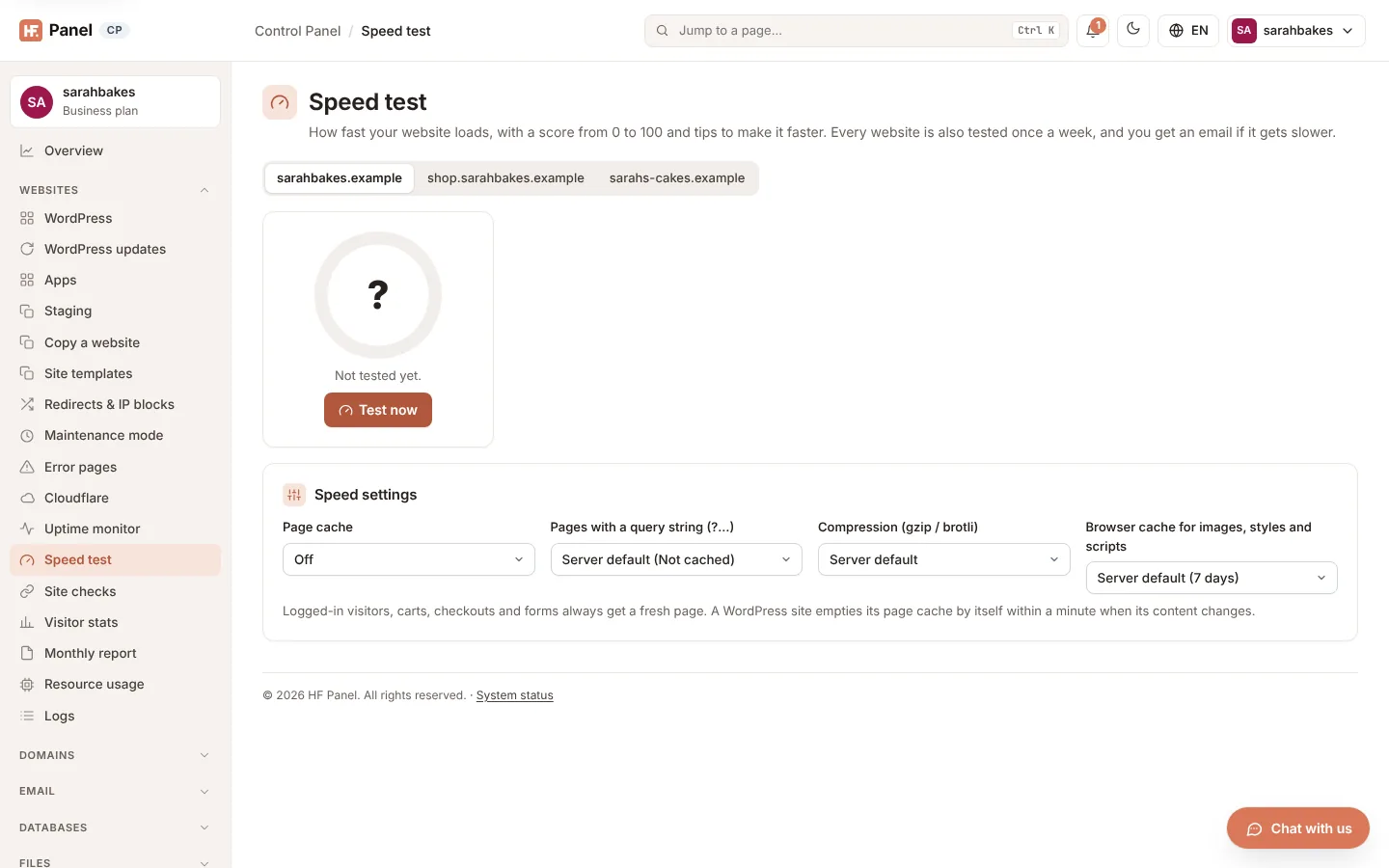
The test runs from the server itself: it measures your hosting and your page, not the visitor's internet connection.
Test a website
- Click the website in the picker at the top. Websites that were tested before show their last score.
- Click Test now (or Test again).
When the test is done the message shows the score, for example 87 / 100. If the page could not be loaded, check that the website is switched on and its files are uploaded.
Note: you can run up to 20 tests per account an hour.
If your hosting provider has the weekly test switched on, the screen says so: every website is also tested once a week, and you get an email if its score drops by 10 or more.
Read the result
| Part | What it shows |
|---|---|
| Score | 0–100 with a verdict: Fast (90 and over), Could be faster (50–89) or Slow (under 50), and when it was tested |
| Server response | the time to first byte. If the first visit was much slower than later ones, it is shown too. |
| Page size | the page with its images, styles and scripts |
| Files | how many files the page loads, how many are images and how many come from other sites |
| Score history | a small chart of the score over your tests, shown after two tests |
Make it faster
Make it faster lists the tips, with the points you can gain first (for example +15). Click Fix it on a tip and the panel does it for you:
| Tip | What Fix it does |
|---|---|
| Page cache (or a slow server response of a PHP site without it) | switches the page cache on, keeping pages 10 minutes |
| Compression | switches gzip compression on for the website (and Brotli when the server has it) |
| Browser caching | lets browsers keep images, styles and scripts for 30 days |
| Modern image format (WebP) | runs the image optimiser on the website (lossless) and adds WebP copies; you can follow it live |
Then click Test again to see the new score. Other tips have a button that opens the screen that fixes them, such as PHP settings, Image optimiser, Redis cache, SSL/TLS or Logs. If there is nothing to improve, the screen says "Nothing to improve — this website does everything the test checks."
All checks
| Check | Points | What it looks at |
|---|---|---|
| Server response time | 25 | how long before the first byte arrives |
| Page cache | 10 | whether pages come from the page cache |
| Compression | 10 | whether pages are sent compressed (for example Brotli) |
| HTTPS | 10 | a working certificate, and whether http:// goes to https:// |
| Page size | 15 | the total size of the page and its files |
| Large images | 10 | images over 300 KB |
| Modern image format (WebP) | 5 | the share of images served as WebP |
| Number of files | 5 | how many separate files the page loads |
| Browser caching | 5 | the share of files the browser may keep |
| HTTP/2 | 5 | whether the page is served over HTTP/2 |
| PHP version | 5 | the PHP version of the website |
| Redis object cache (WordPress) | 5 | for WordPress, whether it keeps its object cache in Redis |
Some checks only appear when they apply, for example the PHP and Redis checks. Lazy loading may be listed as a tip without points.
Under the table, Details shows the plain facts: the compression used, the HTTP version (HTTP/2, and HTTP/3 when the
server offers it), the page cache's answer (HIT, MISS, BYPASS… from the X-HostFog-Cache header), the page's
own Cache-Control header and the image formats found. Largest images lists the biggest images with their size.
Speed settings
Each setting saves as soon as you change it.
| Setting | What it does |
|---|---|
| Page cache | Off, or how long ready-made pages are kept (5, 10, 30 minutes or 1 hour). Works for websites on Nginx only and on Nginx + Apache. |
| Pages with a query string (?…) | whether addresses such as /shop/?colour=red are cached too. Server default is set by your hosting provider; normally they are not cached. |
| Compression (gzip / brotli) | Server default, On or Off for this website |
| Browser cache for images, styles and scripts | how long visitors' browsers keep these files: No expiry, 1 day, 7 days, 30 days or 1 year |
| LiteSpeed Cache (WordPress) | On or Off. Shown only when your server runs OpenLiteSpeed (see LiteSpeed Cache below). |
Empty page cache (shown while the page cache is on) removes the saved pages at once, also those of the website's parked domains.
Page cache
The page cache keeps a ready-made copy of each page for visitors who aren't logged in, so the website answers without running PHP or the database. Websites on Nginx only keep what PHP returns; websites on Nginx + Apache keep what Apache returns.
| What | How it is handled |
|---|---|
| Never cached | logged-in WordPress visitors, WooCommerce and other shop carts (their cookies), the cart, checkout and my-account pages, admin and login pages, searches, previews, feeds, form posts (POST), and any page that sets a cookie or says no-cache |
| Query strings | an address with a query string (/shop/?colour=red) gets a fresh page, unless Pages with a query string (?…) says Cached. Campaign tags alone (?utm_source=…&utm_medium=…) don't count: those visitors get the cached page. |
| Space | each website has its own cache folder. Your hosting provider sets the space for your account; your websites with the page cache share it. It counts in your disk usage. |
| Header | each answer has an X-HostFog-Cache header (HIT, MISS, BYPASS, EXPIRED…), so you can see in your browser's developer tools whether a page came from the cache |
Empty one page
While the page cache is on, Empty one page removes a single page: type its address, such as /about/ or
https://example.com/about/, and click Empty this page. Use it after you change a page outside WordPress, for
example a static file your page includes. Campaign tags (utm_…) are ignored; any other query string is part of the
address.
WordPress
A WordPress website with the page cache on gets a small must-use plugin, wp-content/mu-plugins/hostfog-cache.php.
Within a minute of a change it refreshes:
- a post or page that is published, updated, trashed or deleted: that page, the home page and the posts page;
- a comment that is added, edited, approved or deleted: the page of its post;
- a product whose stock changes (WooCommerce): its page;
- a theme, menu, widget, permalink or plugin change, or an update: the whole website.
The plugin only writes the changed addresses to a file in your account's tmp folder; the server reads that file and
removes those pages. Switching the page cache off removes the plugin.
Note: archive pages (categories, tags, page 2 of the blog) refresh when their cache time runs out. Choose a shorter time, or click Empty page cache, if they must change at once.
Note: a website that runs a Node.js app has no page cache or browser cache choice; compression still applies.
Tip: the Image optimiser usually takes off the most weight, without any visible difference.
LiteSpeed Cache for WordPress
When your hosting server runs OpenLiteSpeed behind Nginx, a WordPress website can use LiteSpeed Cache instead of the page cache. Set LiteSpeed Cache (WordPress) to On:
- the page cache is switched off (one cache is enough, and LiteSpeed Cache refreshes pages itself when content changes);
- the LiteSpeed Cache plugin is installed (or updated) and activated in the WordPress at the top of the website;
- its page cache is switched on (pages for visitors, for logged-in users, the REST API and the login page), and its
rules are added at the top of the website's
.htaccess; - the server's cache for the website is switched on.
Empty page cache empties LiteSpeed Cache too. Setting it to Off deactivates the plugin (its settings stay) and empties the cache. The plugin's own screen in WordPress (LiteSpeed Cache in the WordPress menu) has the finer settings.
Note: LiteSpeed Cache needs WordPress at the top of the website (not in a sub-folder) and works only on a server that runs OpenLiteSpeed. The page cache can't be switched on while LiteSpeed Cache is on.