Firewall
Open ports, block IP addresses from the whole server, delete firewall rules, lift fail2ban bans and use the community blocklist.
The Firewall screen shows which ports are open on the server, who is blocked, and who fail2ban has banned for guessing passwords. You can open a port, block an IP address or range, remove a rule, and unban an address. Every change is written to the Activity log.
Where: Server Admin › Security › Firewall
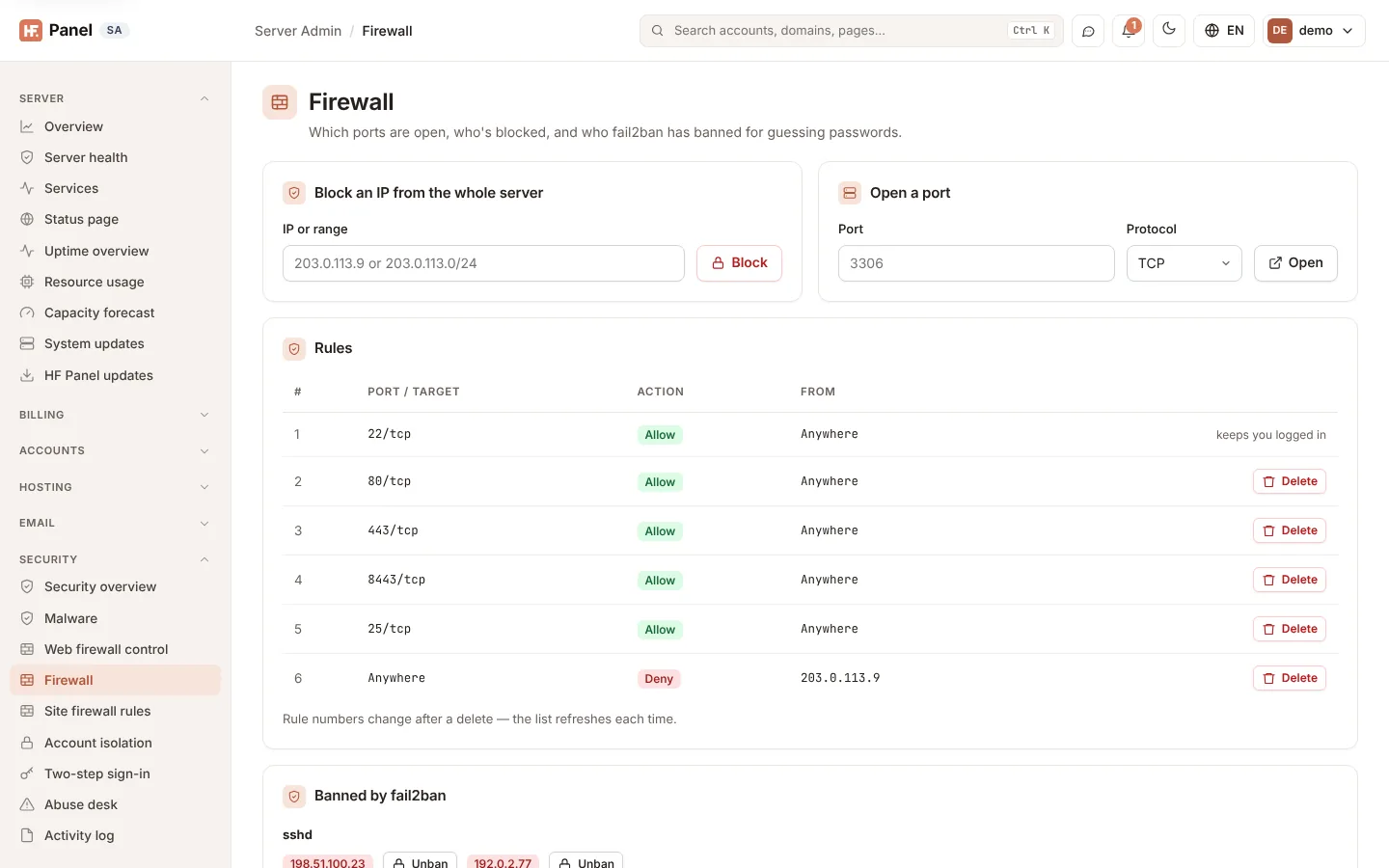
Block an IP address from the whole server
- In Block an IP from the whole server, type an address or range in IP or range, for example
203.0.113.9or203.0.113.0/24. - Click Block.
The address can no longer reach any service on the server.
Open a port
- In Open a port, type a Port, for example
3306, or a range such as6000:6100. - Choose the Protocol: TCP, UDP or Both.
- Click Open.
Read and delete rules
The Rules table lists the firewall's numbered rules:
| Column | What it shows |
|---|---|
| # | The rule number. |
| Port / target | The port, range or service. |
| Action | Allow, Deny, Reject or Limit. |
| From | Where the traffic may come from, for example Anywhere or an IP address. |
To remove a rule, click Delete and confirm. Rule numbers change after a delete, so the list refreshes each time.
Important: the SSH rule cannot be deleted from this screen. It shows keeps you logged in instead of a Delete button, so you cannot lock yourself out of the server.
If the table says No rules (is the firewall off?), the firewall returned no rules.
Unban an address
Banned by fail2ban lists the addresses banned right now, grouped by jail. IP addresses that fail to log in to SSH 5 times are banned for an hour; when email hosting is on, failed email logins count too.
To lift a ban, click Unban next to the address. It is removed from every jail.
Tip: if a customer cannot connect to SSH or email, check here first. A wrong password saved in a mail app can get their office IP banned.
Community blocklist
The Community blocklist card blocks addresses that attacked several other HF Panel servers, before they reach yours. It has two switches, each on its own:
| Switch | What it does |
|---|---|
| Use the community blocklist | Every 30 minutes the server fetches the list from the publisher, checks its signature and loads it into the firewall. Each entry expires after 2 hours unless it is still on the list, so an address that stops attacking is let in again. On by default on new servers; servers installed before keep it off until you switch it on. |
| Share attack signals | Every 30 minutes the server sends the addresses that clearly attacked it: fail2ban bans for SSH and email, floods of failed panel sign-ins, requests the web firewall blocked with an exploit rule, and scans that got 404 answers for well-known attack paths such as /wp-login.php or /.env. Off by default. |
Click Save after changing a switch. Switching the list off removes it from the firewall at once.
The line under the switches shows how many addresses the list has, how many of them are blocked on this server and how many addresses this server reported in the last 24 hours.
An address is put on the list only when at least three different servers reported it within 24 hours. Search engine crawlers and the addresses of licensed servers are never listed.
Unblock an address
- Type the address or range in IP or range, for example
203.0.113.9. - Click Unblock.
The address goes on the list under the form and is never blocked by the community blocklist on this server. To take it off that list, click Remove next to it.
The community blocklist also never blocks this server's own addresses, joined servers and the addresses administrators signed in from in the last 30 days.
The card is the same on every server. The list itself is made on the publisher's own server, in HQ › Community blocklist, from the signals servers share.
Note: an address you block yourself under Block an IP from the whole server stays blocked; Unblock only changes the community blocklist.
Privacy
IP addresses are personal data under data protection law. With Share attack signals on, each report holds only
the address, a reason (ssh, mail, panel, waf or scan) and the time. It never holds a web address, a login
name, an email address or anything about your customers or their websites. Each address is sent at most once a day,
and the report is signed with your licence key. The publisher keeps reports for two days. Switch sharing on only if
your own privacy notice covers it.