Import mail
Copy a mailbox from your old email provider into one of your mailboxes over IMAP, in the background, with progress and a log.
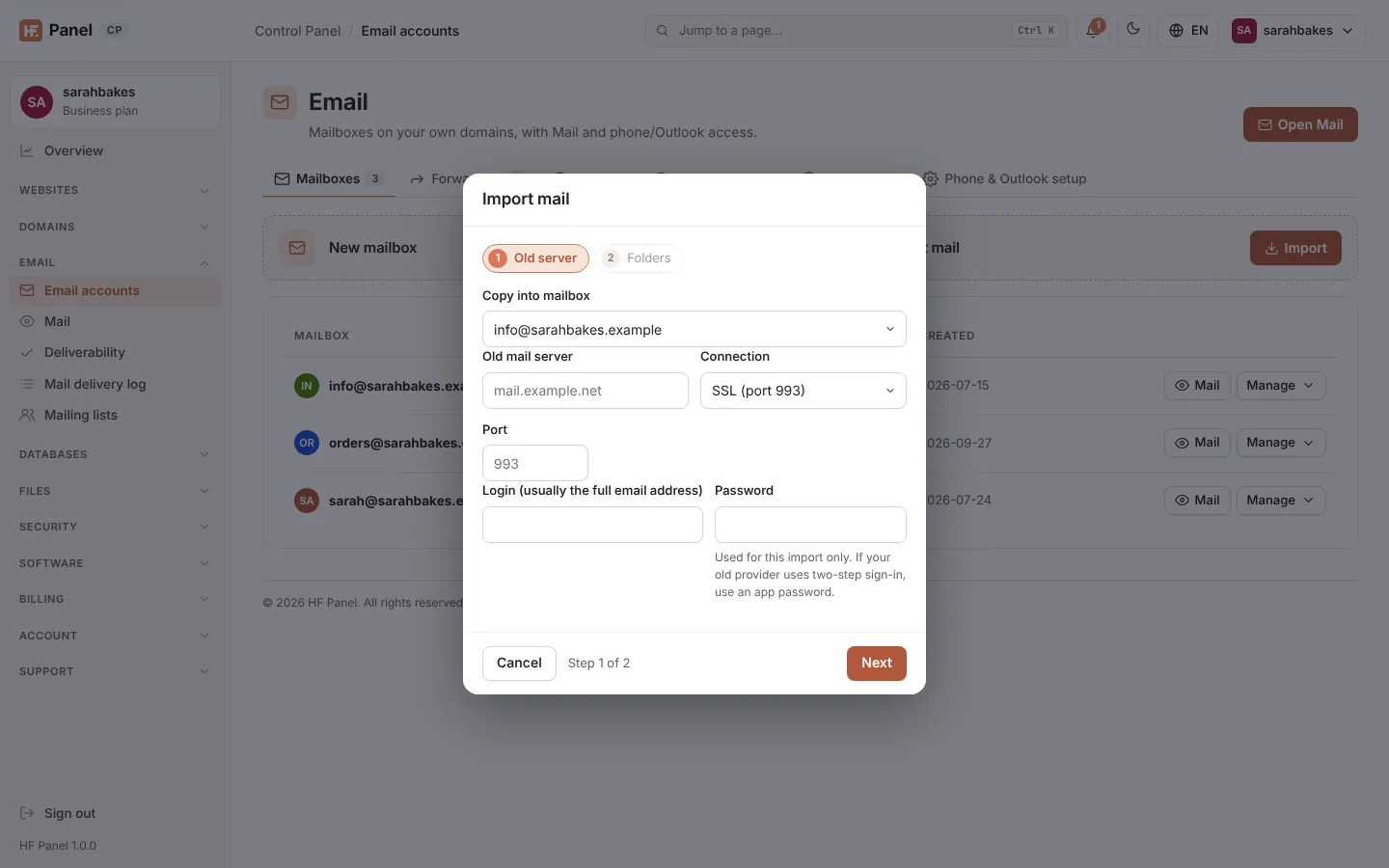
Import mail copies the messages of a mailbox at your old email provider into one of your mailboxes here. It signs in to the old mail server over IMAP, copies every folder (or the ones you choose) with their read and flagged state and dates, and runs in the background. Nothing changes at your old provider.
Where: Control Panel › Email › Email accounts › Mailboxes tab › Import mail card
Before you start
- Create the mailbox here first, under Email accounts.
- Find your old provider's IMAP server name, for example
imap.example.net, and whether it uses SSL (port 993) or STARTTLS (port 143). - If your old provider uses two-step sign-in, create an app password there and use it instead of your normal password.
Start an import
-
On the Mailboxes tab, click Import on the Import mail card.
-
Fill in the Old server step:
Field What it does Copy into mailbox the mailbox here the messages go into Old mail server the old IMAP server's name or public IP address Connection SSL (port 993) or STARTTLS (port 143) Port leave empty for the usual port of the connection Login (usually the full email address) your login at the old provider Password your password (or app password) there -
Click Next. Choose All folders, or Only these folders: the panel connects to the old server and lists its folders to tick.
-
Leave Skip messages that are already in the mailbox ticked unless you want copies of messages you already have.
-
Click Start import.
The panel signs in to the old server once before it starts, so a wrong name or password is shown straight away, under its field.
Follow an import
While an import runs, the Import mail list under your mailboxes shows each import with its status (Waiting, Running, Done, Failed or Cancelled), a progress bar, how many messages were copied, skipped and failed, and the folder being copied. Click Log to read what happened folder by folder. You can leave the page.
When the import ends you get a notification and an email.
To stop an import, click Cancel. Messages already copied stay in the mailbox.
How folders are copied
- INBOX goes into your INBOX.
- The old server's sent, drafts, trash, junk and archive folders go into the matching folders of your mailbox.
- Other folders keep their names and sub-folders.
- Folders that only collect messages from other folders (such as an "all mail" or "starred" view) are left out, so messages are not copied twice.
Run it again
You can run the same import again later, for example to pick up mail that arrived at the old provider before you moved your domain's MX records. With Skip messages that are already in the mailbox ticked, messages already copied are skipped: a message counts as the same when it has the same Message-ID and date, or the same date and size when it has no Message-ID.
Limits
- One import at a time per hosting account; on a busy server an import may wait (Waiting) until another ends.
- The panel connects only to public addresses, never to this server or a private network.
- Too many connection attempts in a short time are refused for 15 minutes.
- Messages larger than 100 MB are left out and counted as errors.
- An import stops after 12 hours; start it again to copy the rest.
- Your old password is used for the import only. It is kept encrypted while the import runs and deleted when it ends.
Note: Import mail works for mailboxes on the main server. Server administrators can change how many imports run at once with
mail_import_maxin the panel settings file (default 2).
Related
- Email accounts
- Set up mail apps
- Import accounts (moving whole hosting accounts)