Managing files
Upload, create, rename, copy, move, delete and download files and folders in Files.
Everything you do in Files happens in the folder you have open. Select entries with a click (or their tick boxes) to act on several at once, or right-click an entry for its menu. The mouse, keyboard and drag-and-drop ways are listed in Files.
Where: Files
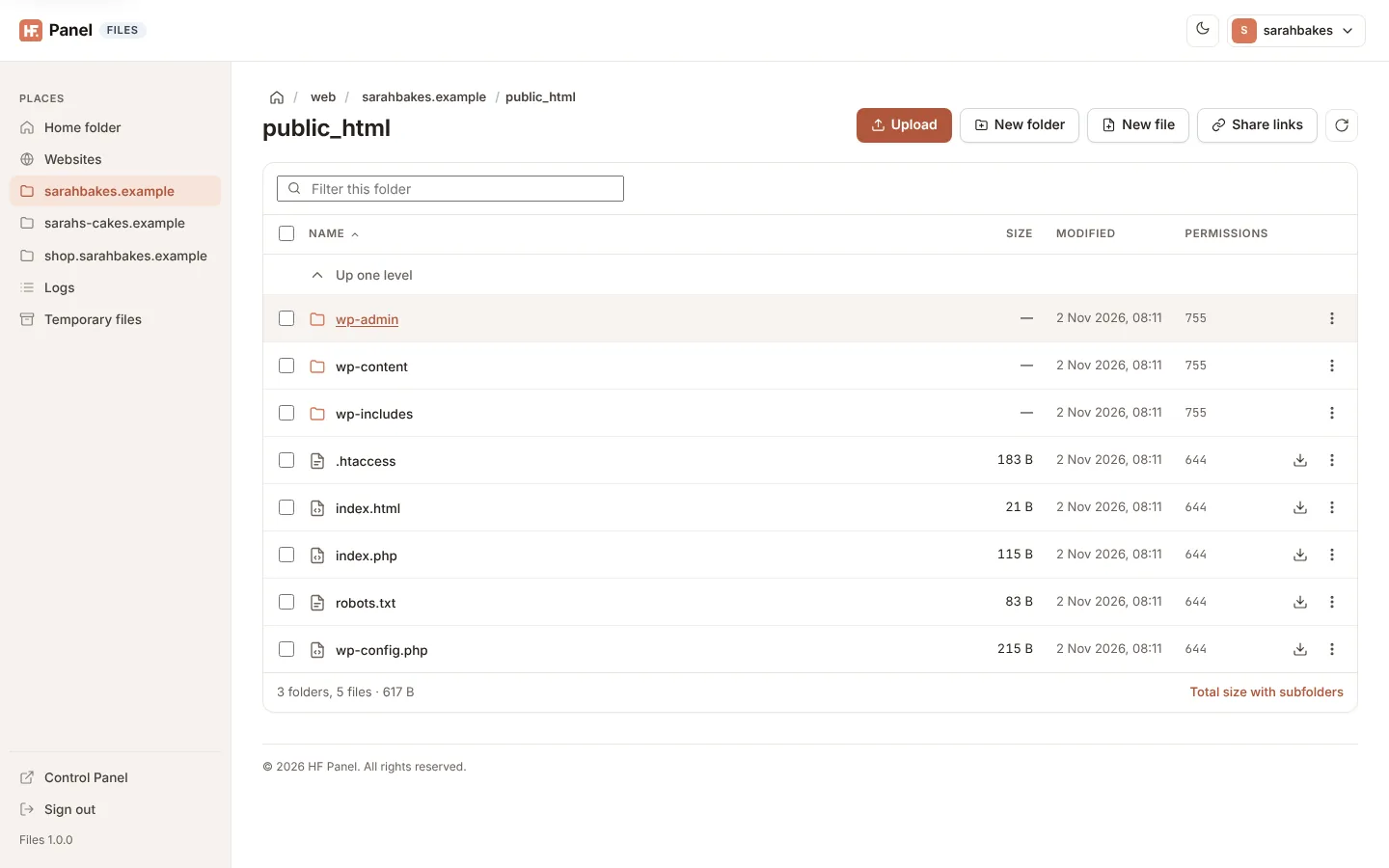
Upload files
- Open the folder to upload into.
- Click Upload and choose one or more files, or drag files or folders from your computer onto the folder view (Drop to upload to … appears), or onto a folder in the list to upload into that folder.
- Watch the progress in the corner. Click Cancel to stop an upload.
When it finishes you see n file(s) uploaded. A file with the same name is replaced.
| Limit | Value |
|---|---|
| One upload (all files together) | 1 GB |
| Your account's disk space | uploads stop when the account is full |
A dropped folder is uploaded with everything in it, keeping its own folders.
Tip: for a very big folder, zip it on your computer, upload the
.zipand use Extract here. For very big files, use SFTP.
Create a folder or file
- Click New folder (or New file).
- Type the Folder name (or File name) and click Create.
A new file is empty; double-click it to open it in the editor.
Actions on one entry
Right-click the entry, or click the More button (⋯) at the end of its row:
| Action | What it does |
|---|---|
| Open / Edit | opens a folder, or a text file in the editor |
| Preview | shows a picture, with its size and date |
| Download | saves the file to your computer |
| Cut / Copy | keeps the entry to paste into another folder (see below) |
| Paste | (folders) puts what you cut or copied into this folder |
| Rename | type the New name and click Rename |
| Make a copy | type the name for the copy in Make a copy named and click Copy |
| Move | moves it to another folder (see below) |
| Zip | packs it into a .zip archive |
| Extract here | (.zip files) unpacks the archive into this folder |
| Share link | makes a public download link (see Share links) |
| Permissions | changes who can read, write and run it (see Archives and permissions) |
| Delete | deletes it |
Files also have a download button in their row.
Act on several entries
- Select the entries: click one, then
Ctrl+ click (⌘+ click on a Mac) orShift+ click more; or tick them, or the box in the heading row to select every entry shown. - Use the buttons that appear above the list:
| Button | What it does |
|---|---|
| Download | (one file selected) downloads it |
| Zip | packs the selected entries into one archive |
| Move | moves them to another folder |
| Delete | deletes them |
| Clear selection | unticks everything |
Right-click one of the selected entries for Cut, Copy, Move, Zip and Delete. Keyboard: Delete
deletes the selected entries (after you confirm), Esc clears the selection.
Move entries
- Choose Move.
- In Move to folder, type a folder in your home, for example
/web/example.com/public_html. - Click Move.
You see n item(s) moved to ….
Or drag the entries onto a folder in the list, onto Up one level or onto a part of the path at the top. Hold Ctrl
or Alt while dropping to copy them instead.
Cut, copy and paste
- Select the entries and press
Ctrl+Xto move them orCtrl+Cto copy them (or choose Cut or Copy in their menu). Cut entries are shown faded. - Open the folder to put them in and press
Ctrl+V, or right-click an empty part of the list and choose Paste. To paste into a folder of the list, choose Paste in that folder's menu.
You see n item(s) moved to … or n item(s) copied to …. Copies pasted into their own folder are named
copy-of-…. Nothing is copied over an entry of the same name.
Delete entries
Choose Delete and confirm. Folders are deleted with everything in them.
Warning: deleting in Files is permanent. There is no trash or undo. Make a copy or a backup first if you may need the file again.
Download
- One file: the download button on its row, or Download in its menu.
- A folder or several files: Zip them, then download the
.zip. Or make a share link to the folder; it downloads as a zip file.