Server mailboxes
Open admin@yourdomain.com and the server's other mailboxes in Mail, reset their passwords and manage the role addresses.
The Server mailboxes screen is where the mail of your server's own domain lives: the mailbox
admin@yourdomain.com the installer makes, any other mailboxes of that domain, and the role addresses
postmaster@, abuse@, hostmaster@, webmaster@, dmarc@, tls@ and security@ with where they go.
Where: Server Admin › Email › Server mailboxes
The server's own domain is the domain of your panel addresses: for srv.yourdomain.com it is yourdomain.com.
Sign in to admin@yourdomain.com
The How to sign in card says it all:
| Row | What it shows |
|---|---|
The address of Mail, usually https://mail.yourdomain.com. |
|
| Username | Your full email address, for example admin@yourdomain.com (with Copy). |
| Password | Shown once at the end of the installation. The installer also keeps it in /root/hostfog-mailboxes.txt, which only root can read. |
| Mail apps | The IMAP and SMTP server names for a mail app on your computer or phone. |
To open a mailbox without its password, click Mail on its row: Mail opens in a new tab, already signed in.
To read the password on the server:
sudo cat /root/hostfog-mailboxes.txt
Each line is the date, the address and the password the installer (or hf-agent company-mail) made.
Tip: lost the password? Click New password on the mailbox's row. The new password is shown once at the top of the screen; the old one stops working.
Manage the mailboxes
| Button | What it does |
|---|---|
| Opens the mailbox in Mail, signed in, in a new tab. | |
| New password | Makes a new random password and shows it once. |
| Manage › Size limit (MB, 0 = unlimited) | The mailbox's storage limit. Click Save. |
| Manage › Delete mailbox | Deletes the mailbox and all its messages. |
To add a mailbox, click Create on the New server mailbox card, type a name (for example info), set Size (MB) (2048 by default), tick
send only for an address like no-reply@ that sends but refuses incoming mail, then click Create. The password
is made for you and shown once.
Forwarders and role addresses
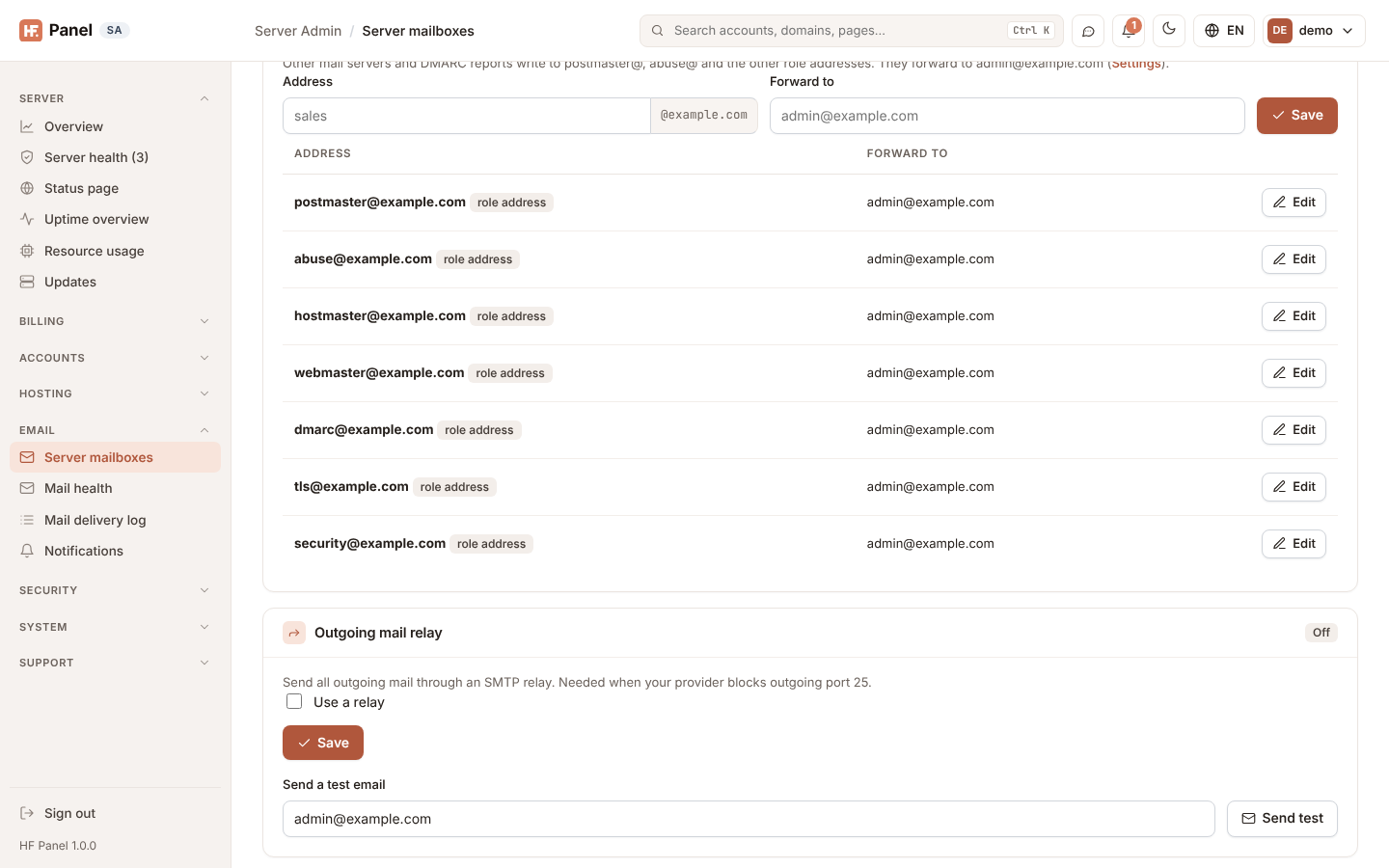
Other mail servers write to postmaster@ and abuse@, and DMARC and TLS reports go to dmarc@ and tls@. HF Panel
makes these role addresses and forwards them to the address set at Role addresses forward to in
Settings (by default the administrator's email, or admin@yourdomain.com).
The Forwarders card lists every forwarder of the domain and where it goes; role addresses carry a role address label.
- To add a forwarder, type the Address and Forward to (a full address, or just a name of the same domain such
as
admin), then click Save. - To send one somewhere else, click Edit on its row, change Forward to and click Save. A role address you send elsewhere keeps your choice when the target in Settings changes.
- Remove deletes a forwarder. Role addresses cannot be removed, only sent somewhere else.
Note: when the server's own domain is also a website of a hosting account with email on, these addresses are that account's mailboxes and forwarders. The screen says so, and the account's Email accounts screen shows them too.
Outgoing mail relay
The Outgoing mail relay card sends all the server's outgoing mail through an SMTP relay, for servers whose provider blocks outgoing port 25. It is shown whenever mail is on, even when the server has no domain of its own. See Outgoing mail relay.