Site firewall rules
See every website's firewall rules, edit any of them, import the country list and block countries on every website.
Site firewall rules shows the websites whose owners set Firewall rules and lets you change the rules of any website.
Where: Server Admin › Security › Web firewall › Site firewall rules tab
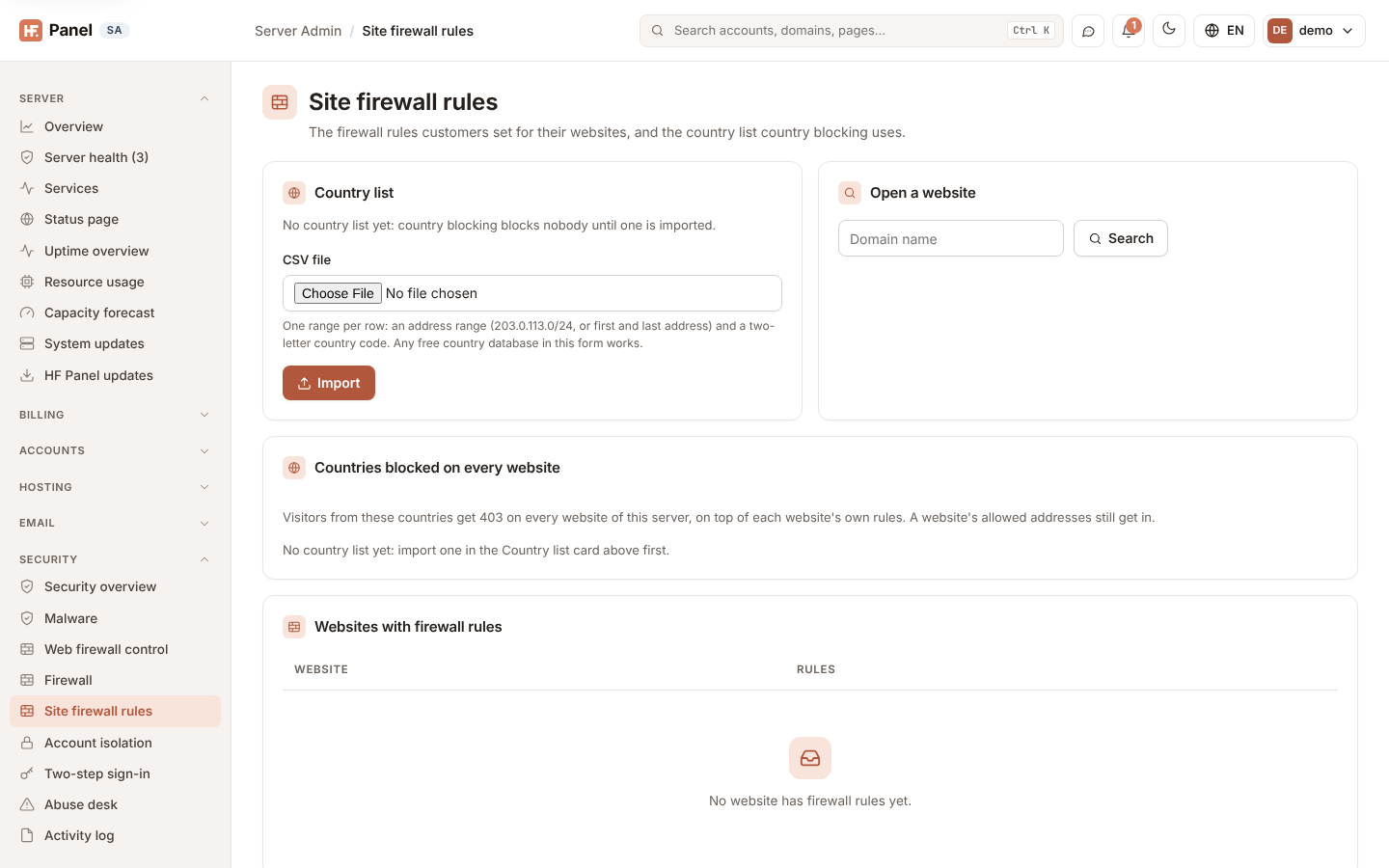
Websites with firewall rules
Each row shows what is on: allowed and blocked addresses, Allowed addresses only, blocked countries, the login limit and bot protection. Click Edit to open the same editor the customer has. To open a website that has no rules yet, search for it under Open a website.
Country list
Country blocking needs a list of address ranges with their countries. Import it as a CSV file:
| Column | Example |
|---|---|
| an address range in CIDR form | 203.0.113.0/24 |
| or the first and last address | 203.0.113.0,203.0.113.255 |
| a two-letter country code | GB |
A header row and rows without a country code are skipped; first–last ranges become CIDR ranges. Any free country database in this form works. Click Import: the list goes to every server, Nginx tests it and reloads. Empty removes the list (country blocking then blocks nobody).
Tip: import a fresh list now and then; address ranges move between countries over time.
Countries blocked on every website
The Countries blocked on every website card blocks countries on every website of the server at once, on top of each website's own rules. Choose a country, click Add, then Save. It uses the same country list as the per-website country block, so it needs the list first; without one the card says so (import it under Country list). Saving sends every website its new rules; on a server with many websites, the ones not done after 20 seconds get them within 5 minutes. Customers see these countries on their Firewall rules screen.
Note: a website's own Allowed addresses still get in.
Blocking from a website's refused requests
In a website's editor, Block next to a request in Latest refused requests puts the address on the account's IP blocker for 7 days: it is blocked on every website of that account. The customer sees it (and can remove it) on their Firewall rules screen.